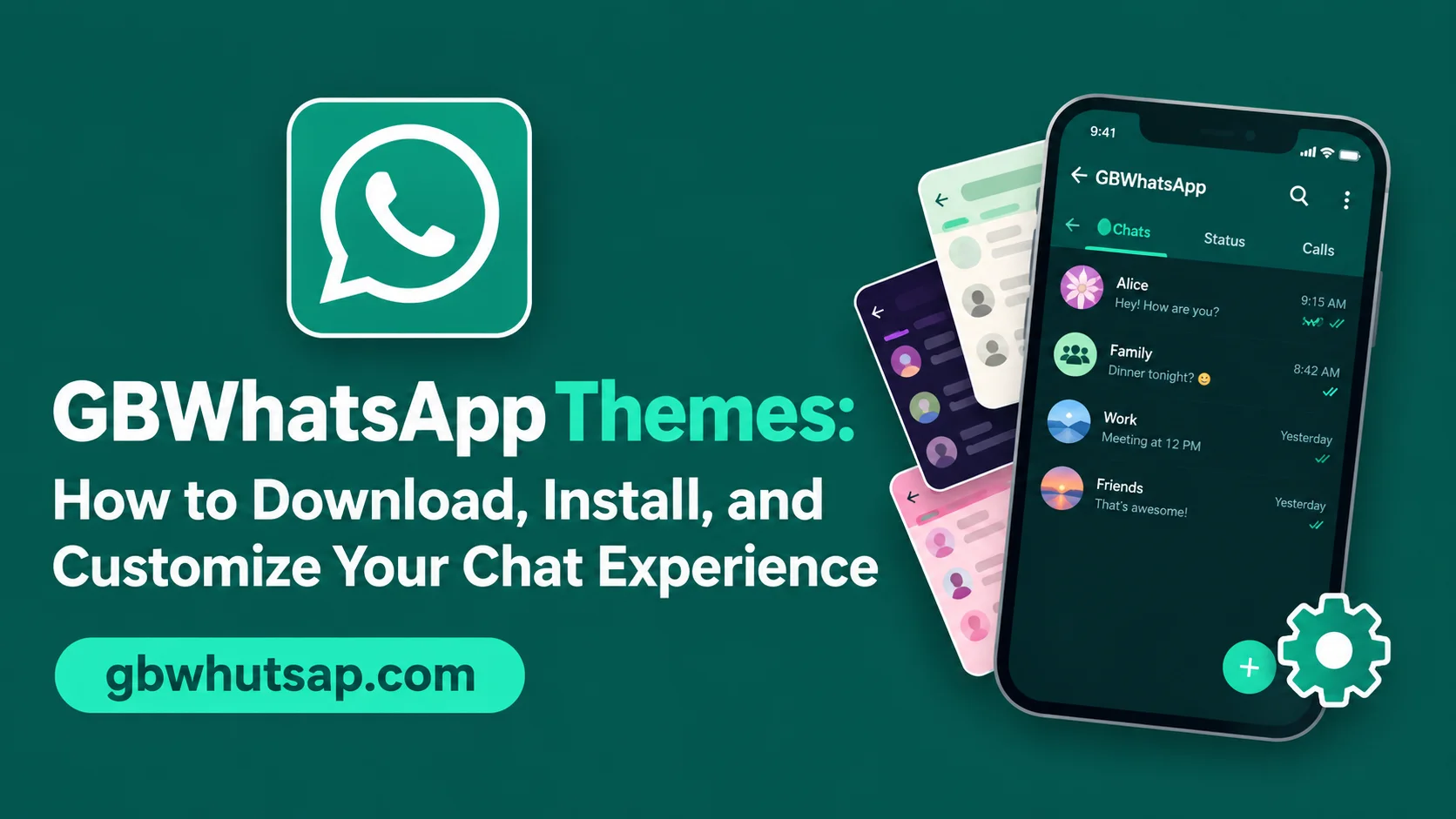
One of the most visually exciting features of Download GBWhatsApp is its theming system. While the official WhatsApp only offers a plain light mode and a dark mode, GBWhatsApp supports thousands of custom themes that completely transform the look and feel of your messaging experience. This guide covers everything you need to know about GBWhatsApp themes from finding and installing them to creating your own.
What Are GBWhatsApp Themes?
GBWhatsApp themes are visual skin packages that change the appearance of the app. A theme can modify:
- The background color and wallpaper of the chat interface
- The color and style of message bubbles
- The icons and their styles
- The fonts used throughout the app
- The color of the navigation bar, status bar, and tabs
- Emoji styles
- Input field design
- And much more
A good theme can make GBWhatsApp look completely different from the default interface, transforming it into something that feels entirely new and personal.
The GBWhatsApp Theme Store (GBWA Themes)
GBWhatsApp has a built-in theme store that you can access directly from within the app. This theme store is called the GBWA Themes portal and contains thousands of free themes submitted by designers from around the world.
How to access the theme store:
- Open GBWhatsApp
- Tap the three-dot menu in the top right corner
- Select “GB Settings”
- Tap “Themes”
- Tap “Download Themes”
You will be taken to the themes portal where you can browse, search, and preview themes before downloading.
Most Popular GBWhatsApp Theme Categories
Dark Themes
Dark themes are consistently the most downloaded category in the GBWhatsApp theme store. These themes use dark backgrounds with light text, which reduces eye strain in low-light conditions and can save battery on AMOLED displays.
Popular dark themes include AMOLED Black (pure black background ideal for AMOLED screens), Midnight Blue (dark blue tones), Dark Minimal (clean and simple dark design), and Material Dark (following Google’s Material Design guidelines with a dark palette).
iOS-Style Themes
Many Android users prefer the visual aesthetic of iOS messaging apps. GBWhatsApp has numerous iOS-inspired themes that make the app look like iMessage or the iOS version of WhatsApp. These themes are popular among users who want the look of iOS without switching devices.
Aesthetic and Minimalist Themes
Clean, minimal themes have become very popular, particularly among younger users. These themes typically use soft pastel colors, large white spaces, rounded corners, and subtle design elements. Examples include Pastel Pink, Lavender Dream, Cotton Candy, and Soft White.
Nature Themes
Nature-inspired themes use photographs or illustrations of natural environments as backgrounds, with complementary color palettes throughout the interface. Forest Green, Ocean Blue, Sakura Pink, and Desert Sand are popular examples.
Neon and Cyberpunk Themes
For users who prefer a bolder, more striking look, neon and cyberpunk themes use bright neon colors on dark backgrounds. These themes are visually dramatic and eye-catching.
Holiday and Seasonal Themes
GBWhatsApp’s theme community regularly releases seasonal themes for major holidays including Christmas, Eid, Diwali, Halloween, New Year, and Valentine’s Day.
How to Install a GBWhatsApp Theme
Installing a theme from the built-in store is simple:
- Browse to a theme you like in the themes portal
- Tap the download button
- Wait for the theme to download
- Tap “Apply” when the download is complete
- The theme is immediately applied to the entire app
Some users prefer to download theme files (.zip format) from external websites and apply them manually. Here is how to do that:
- Download the theme .zip file to your phone
- Open GBWhatsApp and go to GB Settings
- Tap Themes
- Tap the three-dot menu and select “Local Themes”
- Navigate to where you saved the .zip file and select it
- Tap Apply
Customizing a Theme After Installation
GBWhatsApp does not just let you apply themes — it also lets you modify them after installation. You can fine-tune almost every visual aspect of the app through the Customization panel.
Chat Screen Customization:
- Change the wallpaper independently of the theme
- Modify the opacity of the chat wallpaper
- Adjust the size and style of message bubbles
- Change the timestamp color and position
Header and Navigation:
- Customize the color of the top header bar
- Change the color of the bottom navigation bar
- Modify tab icons and their colors
- Adjust the notification badge style
Font Customization:
- Choose from dozens of built-in fonts
- Change the font size for different text elements
- Apply bold or italic styles to specific interface elements
Emoji Customization:
- Switch between different emoji packs
- Choose from standard Android emojis, iOS-style emojis, or custom packs
How to Create Your Own GBWhatsApp Theme
Advanced users can create their own GBWhatsApp themes. This requires some patience but is very rewarding.
What You Need
- A text editor (or XML editor app on Android)
- A basic understanding of XML
- Knowledge of hexadecimal color codes
- The GBWhatsApp theme template file
Basic Steps to Create a Theme
Step 1: Get the Template Start by downloading an existing theme from the store and extracting it. Use the existing theme as a base template.
Step 2: Edit the Style File Inside the theme package, you will find an XML file that defines all the color values for different UI elements. Open this file in a text editor and change the color values to your desired colors.
Step 3: Replace Images Many themes include custom image assets for icons, buttons, and backgrounds. Replace these with your own images.
Step 4: Package the Theme Compress all your edited files back into a .zip file.
Step 5: Apply and Test Apply your theme using the local themes method described earlier. Test all parts of the app to make sure everything looks correct.
Step 6: Share with the Community If you are happy with your theme, consider submitting it to the GBWhatsApp themes portal for other users to enjoy.
Tips for Getting the Best Theme Experience
Match Your Phone’s Overall Aesthetic: The best GBWhatsApp theme is one that complements your phone’s wallpaper, icon pack, and overall color scheme. A cohesive look across your entire phone feels more polished.
Consider Your Usage Environment: If you often use your phone in bright sunlight, choose a lighter theme with high contrast. If you use your phone mostly in dark environments, a dark theme reduces eye strain significantly.
Try Multiple Themes Before Settling: With thousands of themes available, do not just install the first one you like. Browse through several categories and try at least five or six before committing to one.
Update Themes Regularly: Theme designers often release updates to their themes that improve compatibility or add new visual elements. Check for theme updates occasionally.
Back Up Your Current Theme: Before applying a new theme, note down or save your current theme settings so you can easily revert if you do not like the new one.
Frequently Asked Questions About GBWhatsApp Themes
Are GBWhatsApp themes free? Yes. The vast majority of themes in the GBWhatsApp theme store are completely free to download and use.
Can themes slow down my phone? In general, no. Themes are essentially skin files that change colors and images. They do not add heavy processing requirements. However, themes with very large background images could potentially use slightly more memory.
Do themes survive app updates? When you update GBWhatsApp, your applied theme usually remains active. However, new updates may reset some customization settings, so you may occasionally need to reapply your theme after a major update.
Can I use GBWhatsApp themes on the official WhatsApp? No. GBWhatsApp themes are specific to the GBWhatsApp app and cannot be transferred to the official WhatsApp.
How many themes are available? The GBWhatsApp themes portal contains well over 4,000 themes, with new ones being added regularly by the community.
Conclusion
GBWhatsApp’s theming system is one of the most comprehensive customization platforms available in any messaging app. Whether you want a sleek dark interface, a cheerful pastel design, a nature-inspired look, or a dramatic neon aesthetic, the GBWhatsApp theme store has something for everyone. The ability to customize individual elements beyond the theme means you can truly make GBWhatsApp look exactly the way you want it. Dive into the theme store and start personalizing your messaging experience today.